KI-Beratung Beta

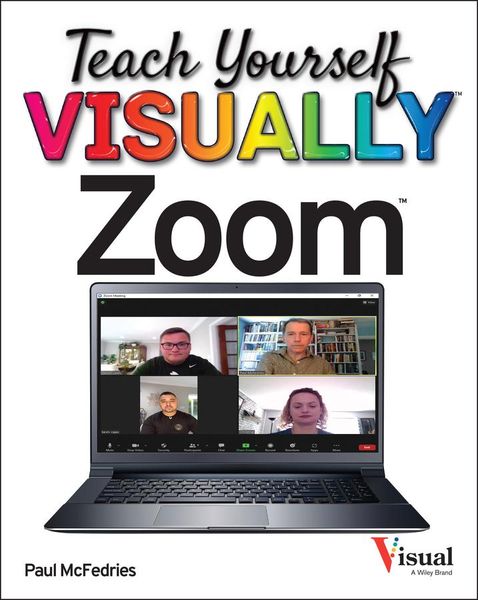
Produktbild: Teach Yourself Visually Zoom

Teach Yourself Visually Zoom

26,99 €

inkl. gesetzl. MwSt., Versandkostenfrei


Beschreibung

Produktdetails

Einband

Taschenbuch

Erscheinungsdatum

05.10.2021

Verlag

John Wiley & Sons

Seitenzahl

304

Maße (L/B/H)

23,4/19,1/1,4 cm

Gewicht

621 g

Auflage

1. Auflage

Sprache

Englisch

ISBN

978-1-119-83584-4

Beschreibung

Produktdetails

Einband

Taschenbuch

Erscheinungsdatum

05.10.2021

Verlag

John Wiley & Sons

Seitenzahl

304

Maße (L/B/H)

23,4/19,1/1,4 cm

Gewicht

621 g

Auflage

1. Auflage

Sprache

Englisch

ISBN

978-1-119-83584-4

Herstelleradresse

Libri GmbH
Europaallee 1
36244 Bad Hersfeld
DE

Email: gpsr@libri.de

Noch keine Bewertungen vorhanden

Verfassen Sie die erste Bewertung zu diesem Artikel

Helfen Sie anderen Kundinnen und Kunden durch Ihre Meinung.

Kundinnen und Kunden meinen

Bewertungen (0)

Die Leseprobe wird geladen.
  • Produktbild: Teach Yourself Visually Zoom
  • Chapter 1 Getting Started
     
    Understanding Zoom Meetings 4
     
    Understanding Other Zoom Products 5
     
    Create a Basic Zoom Account 6
     
    Sign In to Your Zoom Account 7
     
    Upgrade Your Zoom Account 8
     
    Download and Install the Zoom App 10
     
    Join a Test Meeting 12
     
    Explore the Zoom Desktop Window 14
     
    Explore the Zoom Mobile Window 15
     
    Understanding Presence Status 16
     
    Set Your Presence Status 17
     
    Chapter 2 Hosting a Meeting
     
    Start an Instant Meeting 20
     
    Start an Instant Meeting in Your Personal
     
    Meeting Room 21
     
    Invite People to a Meeting 22
     
    Schedule a Meeting 24
     
    Schedule a Recurring Meeting 26
     
    Start a Scheduled Meeting 28
     
    Explore Host Controls 30
     
    Allow a Person into Your Meeting 31
     
    Enable the Co-Host Option 32
     
    Make an Attendee a Meeting Co-Host 33
     
    Assign an Attendee to Type Closed Captions 34
     
    Enable Screen Sharing for Participants 35
     
    Enable Breakout Rooms for Participants 36
     
    Create Breakout Rooms 37
     
    Enable Recording for Participants 38
     
    End a Meeting 39
     
    Chapter 3 Joining a Meeting
     
    Join a Meeting via the Desktop App 42
     
    Join a Meeting via the Mobile App 44
     
    Accept a Direct Meeting Invitation 46
     
    Join a Meeting via an Invitation Link 47
     
    Join a Meeting via the Web 48
     
    Configure Meeting Settings 50
     
    Explore Attendee Controls 52
     
    Keep Meeting Controls On-Screen 53
     
    Change Your Display Name 54
     
    Raise Your Hand 55
     
    Send a Reaction 56
     
    Send Nonverbal Feedback 57
     
    Join a Breakout Room 58
     
    Change the View 60
     
    Show Your Connected Time 61
     
    Leave a Meeting 62
     
    Chapter 4 Working with Meeting Audio
     
    Test Your Audio Devices 66
     
    Select a Different Audio Output Device 68
     
    Select a Different Audio Input Device 70
     
    Mute and Unmute Participants 72
     
    Mute and Unmute Your Microphone 74
     
    Mute Your Microphone Automatically 75
     
    Enable Push-to-Talk 76
     
    Suppress Background Noise 77
     
    Join a Meeting with Audio Automatically 78
     
    Chapter 5 Working with Meeting Video
     
    Select a Different Camera 82
     
    Stop and Start a Participant's Video 84
     
    Stop and Start Your Video 86
     
    Turn Off Video Automatically 87
     
    Bypass the Video Preview 88
     
    Adjust Video for Low Light 89
     
    Choose a Video Filter 90
     
    Choose a Virtual Background 92
     
    Pin a Participant's Video 94
     
    Spotlight Participant Videos 96
     
    Chapter 6 Sharing Your Screen
     
    Share Your Screen 100
     
    Explore Sharing Controls 102
     
    Share a Portion of the Screen 103
     
    Share Your iPhone or iPad Device Screen 104
     
    Share a Whiteboard 106
     
    Share a Video 108
     
    Share Audio 110
     
    Share Video from a Second Camera 112
     
    Annotate a Shared Screen 113
     
    Share Slides as a Virtual Background 114
     
    Host a Screen Share-Only Meeting 116
     
    View a Shared Screen in Side-by-Side Mode 117
     
    Request Control of a Screen Share 118
     
    Chapter 7 Recording a Meeting
     
    Create a Local Recording 122
     
    Configure Cloud Recording 124
     
    Create a Cloud Recording 126
     
    Set Up Automatic Meeting Recording 128
     
    View a Recording 130
     
    Delete a Recording 132
     
    Chapter 8 Configuring Settings
     
    Access Your Zoom Profile 136